Data
A HubSpot migration checklist for UK businesses.
By Felix Grant5 min read
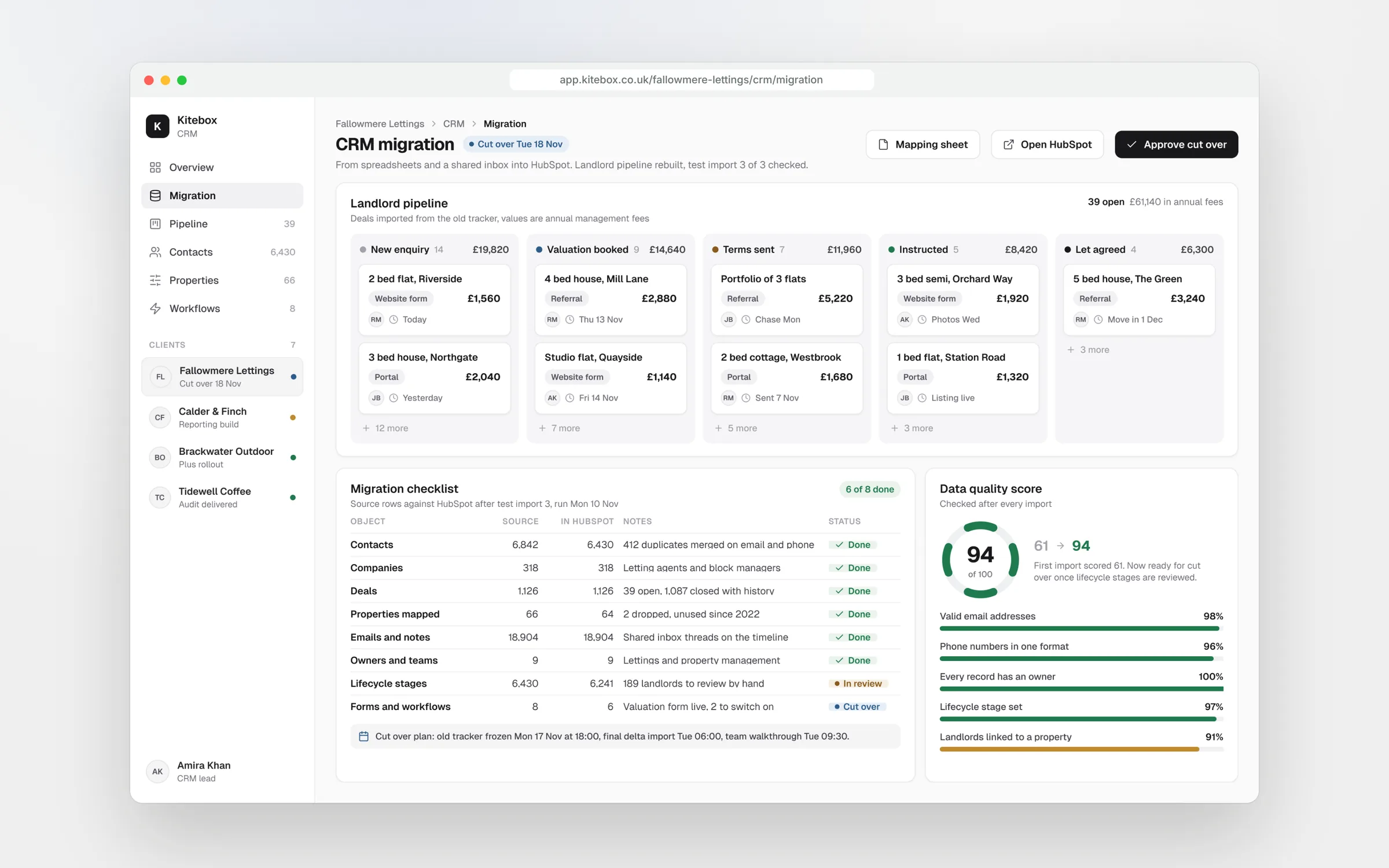
A HubSpot migration goes well when you decide what to move before you move anything. Map every object and property, clean and dedupe the data, decide how much history to bring, set up owners, rebuild automations rather than copying them, then cut over on a fixed date with the old system still readable. This checklist covers each step for UK businesses moving from spreadsheets, Pipedrive, Salesforce or a sector CRM.
Start
Before you move a single record
Export everything from the old system first, including notes, activities and attachments, and store a full copy somewhere safe. Then list who uses the CRM today, what each person does in it and which reports managers rely on. Most migrations that go wrong were scoped around the data, not around the people who use it every day.
Treat the move as a data protection exercise too. Under UK GDPR you should not keep personal data longer than you need it, so a migration is the right moment to apply your retention policy instead of carrying ten years of dead leads into a new system. Bring marketing consent across properly: the source and date of each email opt-in matters if anyone ever asks how you got consent.
Check your HubSpot plan against what you need before you build. Features such as custom objects, advanced permissions and some automation depend on the tier, and Marketing Hub is priced partly on marketing contacts, so decide which imported contacts should count as marketing contacts and which should not.
Mapping
Map objects and properties
Start with objects. From Pipedrive, people become contacts, organisations become companies and deals stay deals. From Salesforce, leads and contacts usually both become contacts, separated by lifecycle stage, accounts become companies and opportunities become deals. From a spreadsheet, you often have all three squashed into one row, which needs splitting before import. Sector CRMs, such as property or recruitment systems, have records like applicants, properties or placements that may need custom objects or a careful use of deals.
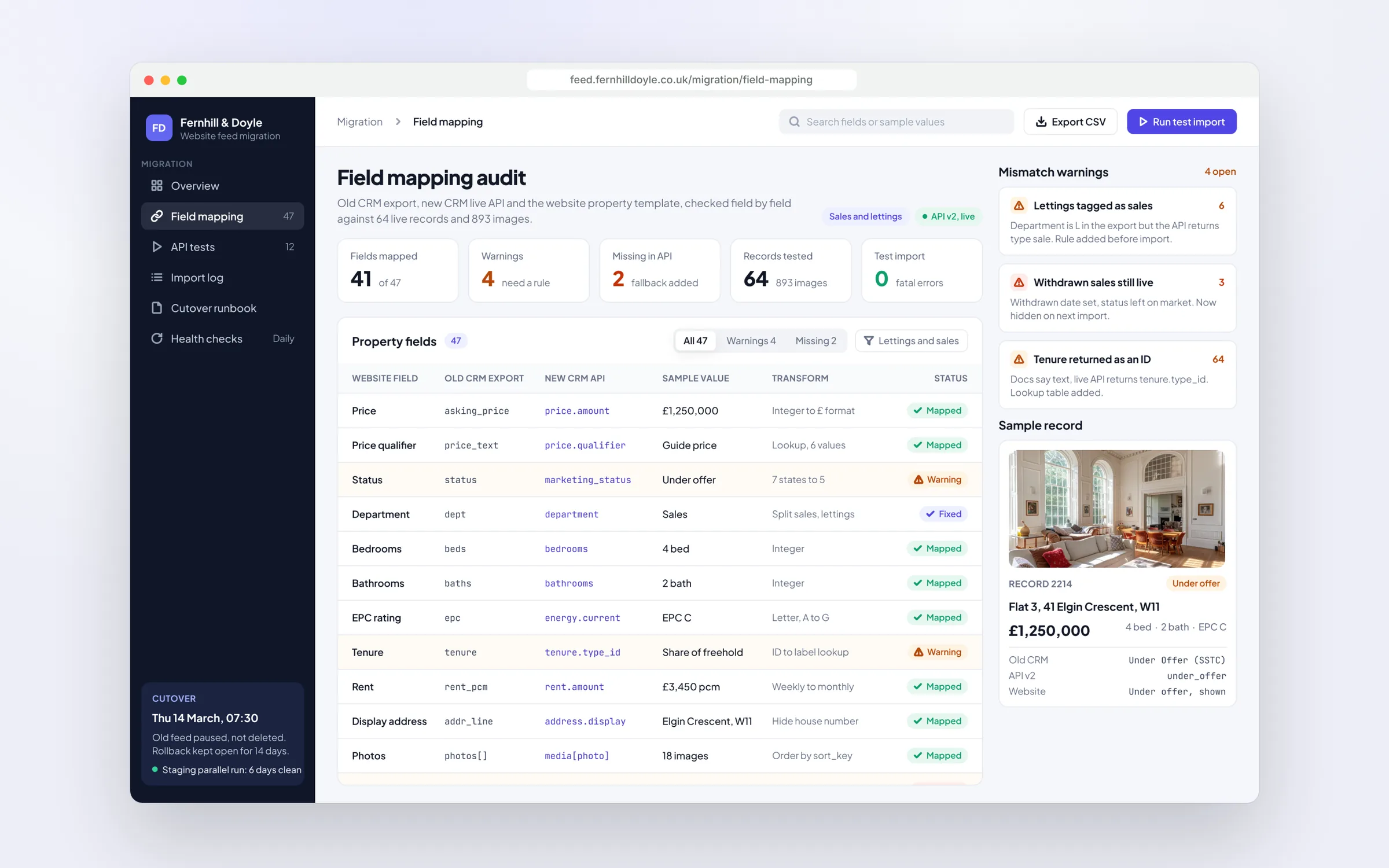
Then map every field in a spreadsheet: old field, new HubSpot property, property type, allowed values and who owns it. Dropdown values must match exactly, or the import leaves them blank. Dates need one consistent format. Fields nobody has filled in for two years are candidates to drop, not to recreate.
Keep the original record IDs from the old system in a custom property. They make it possible to trace any record back, to re-import corrections and to link deals and notes to the right contacts later.
Clean
Clean and dedupe before import
Know how HubSpot matches records, because it decides what happens to duplicates. Contacts are matched on email address, so an import updates an existing contact rather than creating a new one. Companies are matched on domain name, and a company row without a domain is imported as a new company every time. Deals have no automatic match, so use a record ID or a unique property if you will ever re-import them.
Clean in the spreadsheet, not after import. Merge duplicates, standardise UK phone numbers to one format, fix postcodes and country names, add domains to companies and remove test records. Fixing 5,000 rows in a spreadsheet takes an afternoon. Fixing them one by one inside a live CRM takes weeks.
Size the import too. On paid HubSpot plans, import files can be up to 512 MB, with a limit of 1,048,576 rows per file and fewer than 1,000 columns. Free accounts are limited to 20 MB files, so larger datasets need splitting.
History
History, owners and associations
Decide how much history earns its place. Open deals, recent closed deals and the notes behind them are usually worth moving. Every email from 2016 usually is not. A common approach is to bring the last few years in full, then keep a read-only export of the rest that someone can search if needed.
Dates need the same care. If you import notes and activities without an activity date, HubSpot sets them to the date and time of the import, so ten years of history appears to have happened on one afternoon. Carry original dates across for activities, deals and first enquiries, in properties you can report on, and agree with the sales team which dates actually matter for their reports.
Create every user in HubSpot before you import, because each owner column is matched to a user by name or email address. Decide in advance who inherits records owned by people who have left. Then import in order, companies first, then contacts, then deals, then notes and activities, so each import can associate with records that already exist.
Automation
Automations and integrations
List every automation that touches the old CRM: workflows inside it, web forms, email sequences, Zapier or Make scenarios, accounting links and anything a developer built years ago. Many are invisible until they stop working.
Rebuild them in HubSpot from what the business needs now, not from what the old system did. Lead routing, follow-up tasks and deal stage reminders are usually simpler in HubSpot than the workaround they replace. Connect the website forms, inboxes and calendars so data arrives without re-typing.
Switch the old automations off at cutover, not before and not weeks after. The classic mistake is two systems sending the same customer the same email on the same morning.
Cutover
Cutover, training and the first month
Run a test import of 50 to 100 real records and check each one against the source: properties, owners, associations and notes. Fix the mapping, then test again. Agree a cutover date, freeze edits in the old system, run the final import and a top-up for anything changed since the test. Keep the old system readable for a set period, so nothing depends on memory.
Train by role, not by feature. Sales needs pipelines, tasks and the mobile app. Managers need reports. Whoever owns the data needs imports, properties and permissions. Then check usage weekly for the first month and fix whatever people are working around.
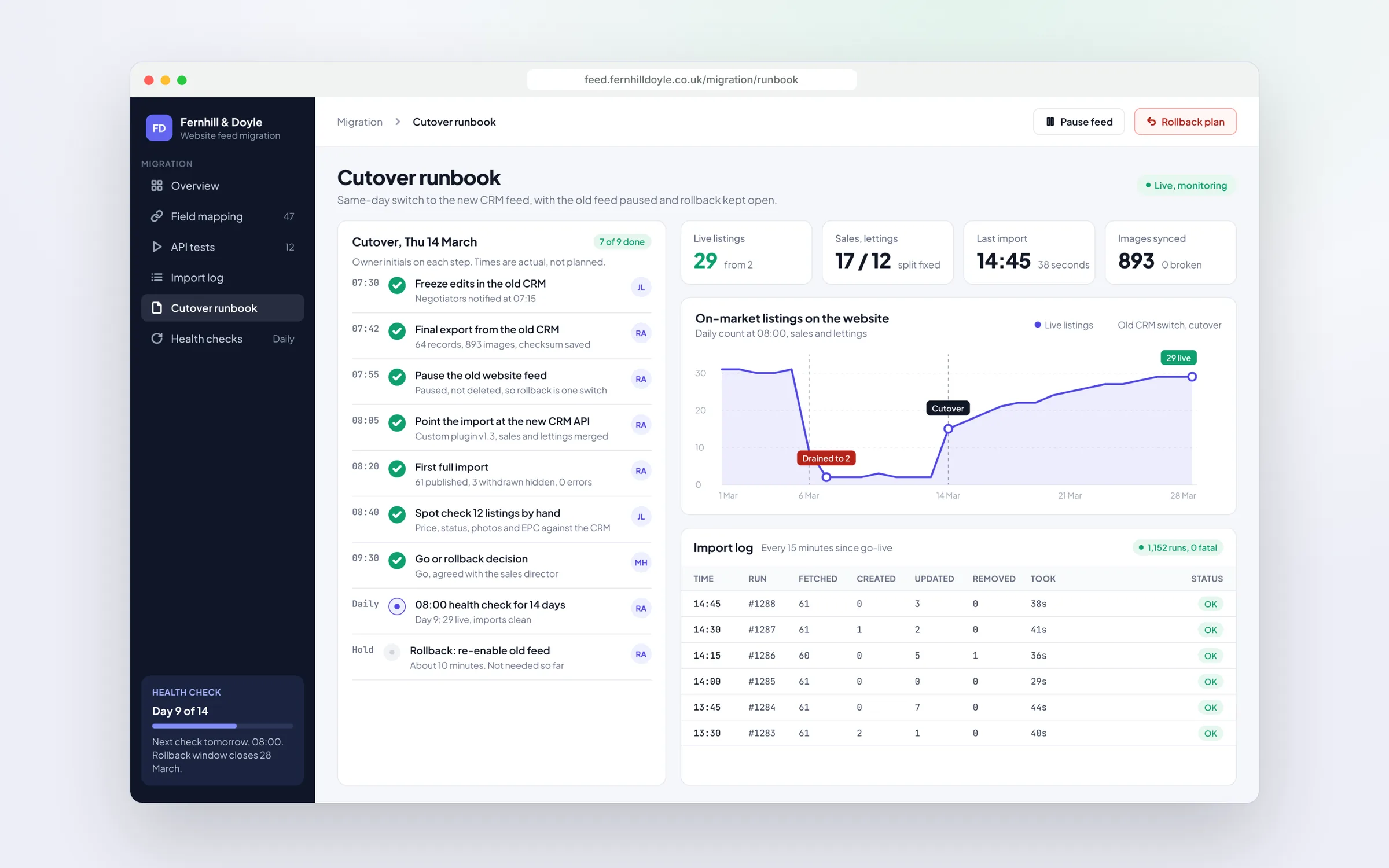
When a London estate agency changed property CRM, its website dropped to 2 listings. We mapped the data field by field, cut over the same day with a rollback kept open, and two weeks later it had 29. We run HubSpot migrations the same way, starting with a written scope, a fixed price and a cutover date before we touch your data.
Decide what to move before you move anything.
Key takeaways
- Map every object and field in a spreadsheet before importing anything
- HubSpot dedupes contacts on email and companies on domain, so clean those first
- Keep old record IDs and original dates in their own properties
- Rebuild automations for how you work now, and switch old ones off at cutover
- Test with real records, keep the old system readable and train by role

Written by
Felix Grant
Founder of Kitebox, a business technology and AI consultancy that builds what it recommends. Based in Mallorca, working with UK businesses.
About Felix →